How to Use Smart Inventory
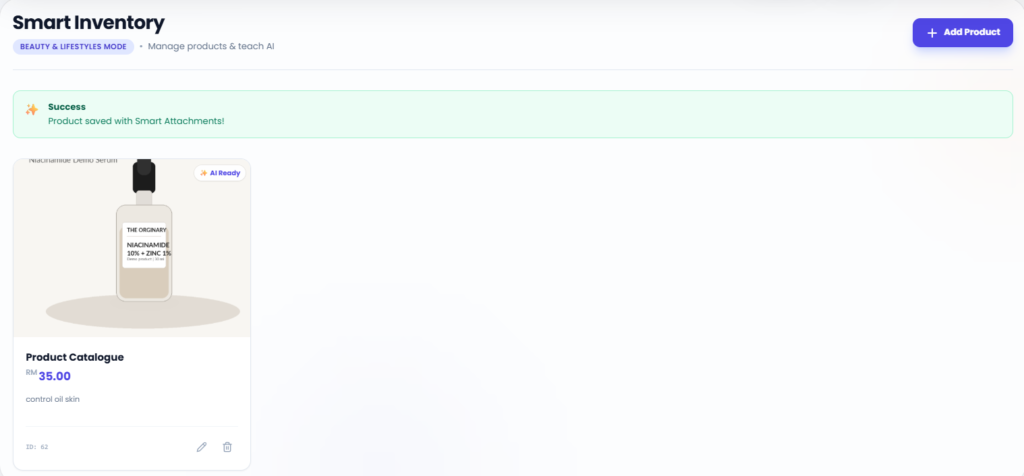
Smart Inventory allows you to add your products, services, packages, photos, brochures, or documents into the Lucco AI system.
After adding the information, the AI Bot can better understand your business and reply to customers with the correct product or service details.
Steps
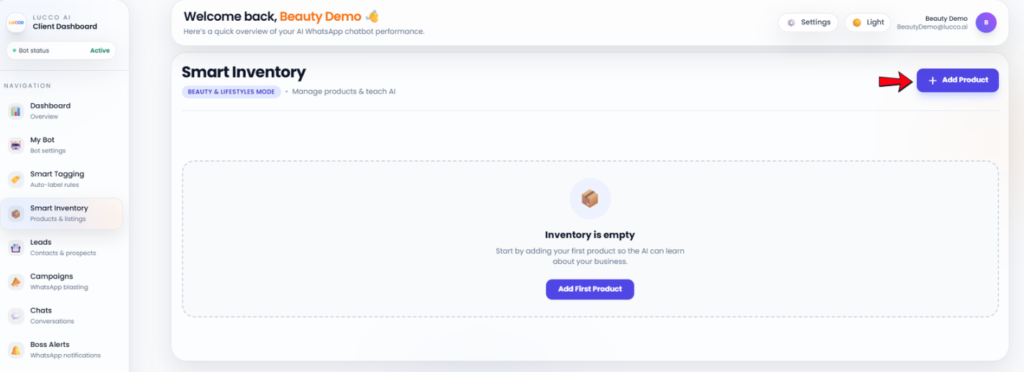
Open the Smart Inventory page.

Click Add Product.
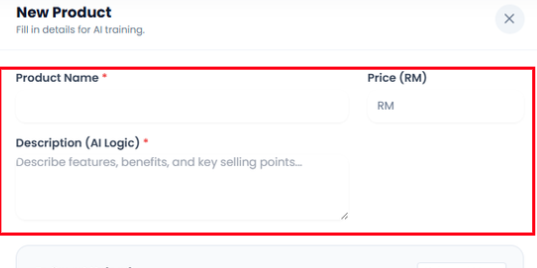
Enter the Product Name.
- Example: Facial Treatment, Hair Package, SPC Flooring, Room Type A, Product Catalogue
Enter the Price (RM) if applicable.
- If there is no fixed price, you may leave it blank or enter the price based on your business setup.
Fill in the Description (AI Logic).
- This part should include the important information you want the AI to understand.
Example:
- Product features
- Benefits
- Package details
- Suitable customer type
- Usage instructions
- Important selling points
- Booking or purchase notes
Choose the upload type under Smart Upload.
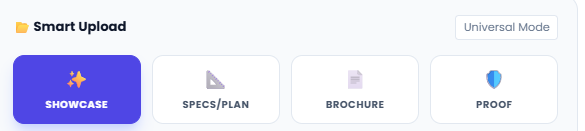
You may upload files under:
- Showcase
For general photos or visuals. - Specs / Plan
For floor plans, room plans, product specifications, size charts, or technical details. - Brochure
For PDF brochures, catalogues, menus, packages, or service lists. - Proof
For customer reviews, before and after photos, testimonials, or result proof.
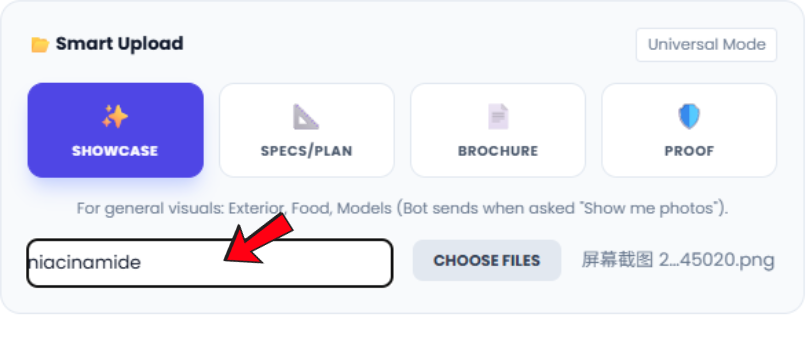
Click Choose Files.
Select the file you want to upload.
Add a label if needed.
Example: Type A Floor Plan, Facial Package Brochure, Customer Review, Product Photo
After completing the details, click Create Product.
The product or service will be added into Smart Inventory.
Important Note
- Smart Inventory helps the AI learn from the product or service information you provide.
- Please make sure the product name, description, price, and uploaded files are clear and accurate.
- If the information is incomplete, the AI may not be able to explain the product or service properly to customers.
- For best results, add both text information and related files, such as photos, brochures, price lists, or proof.