How can we help?
How to Assign Tags to a Chat
Tags help you organize customer chats inside the Lucco AI system.
You can use tags to mark customer status, enquiry type, follow-up stage, or any category that helps your team manage chats better.
Steps
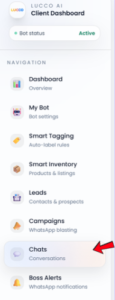
Open the Chats page.
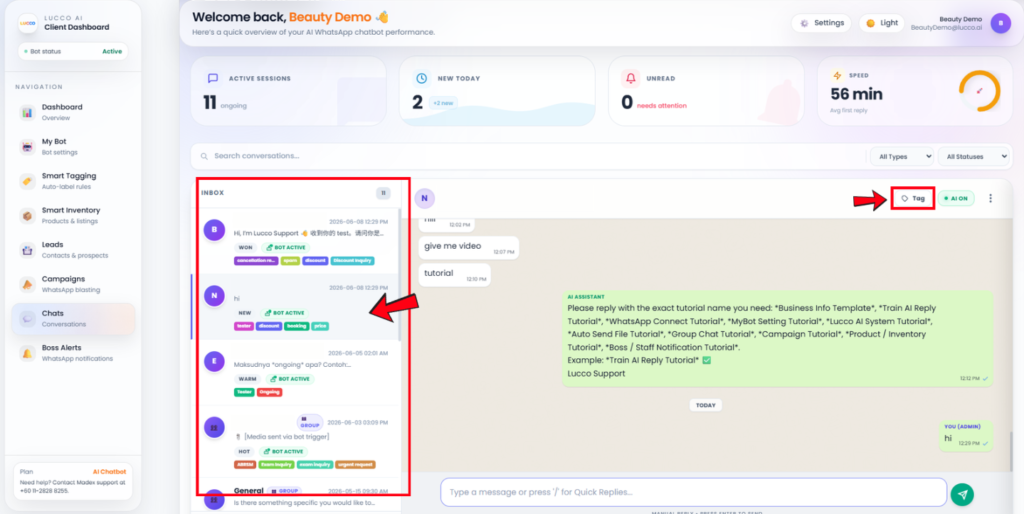
Select the customer chat you want to manage.
At the top right side of the chat area, click the Tag button.
The Assign Labels box will appear.
You will see the available tags in the list.
Tick the checkbox beside the tag you want to assign.
You may select one or more tags.
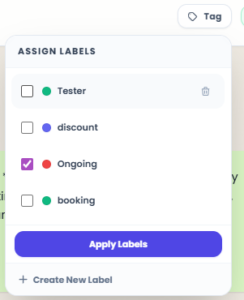
Click Apply Labels.
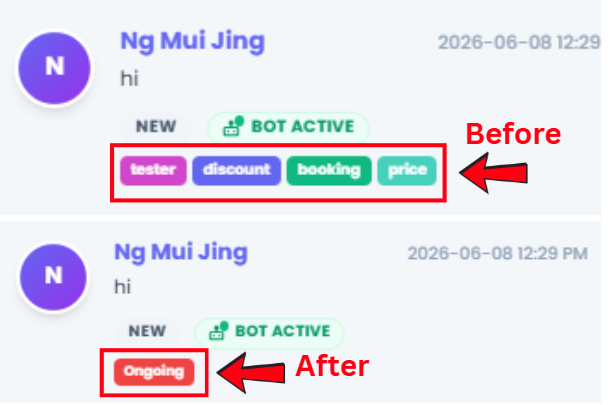
The selected tags will be added to the customer chat.
The tags will also appear in the chat list on the left side.
Important Note
- Tags are manual labels.
- They need to be added or removed manually by your team.
- The tags added inside the Chats page will also appear on the Leads page and in the chat list.

- This helps your team quickly understand the customer status without opening every conversation.