How can we help?
How to Add Keyword Trigger with External Link
This step shows how to auto-send an external link when a customer message matches specific keywords.
Steps
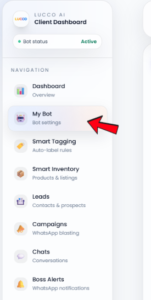
- Open the My Bot page.
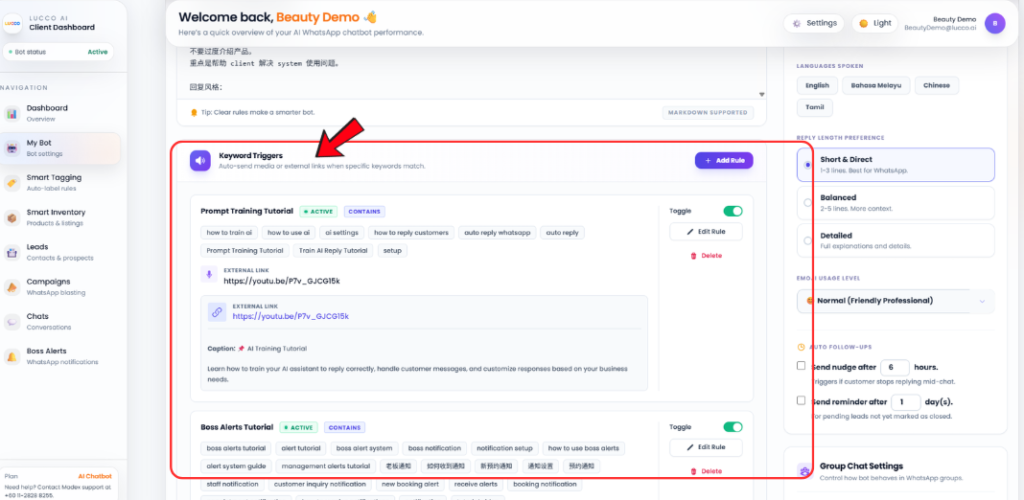
- Go to the Keyword Triggers section.
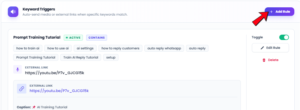
- Click Add Rule.
- Enter the Rule Name.
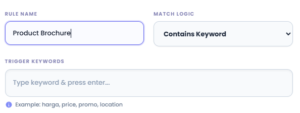
- Choose the Match Logic.
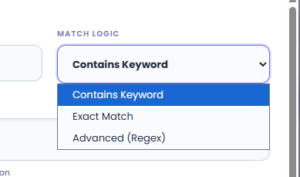
- Enter the Trigger Keywords.
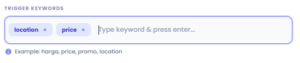
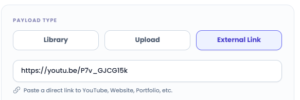
- Under Payload Type, select External Link.
- Paste the link you want to send.
- Example: YouTube video, website page, portfolio, Google Drive link, or brochure link.
- Add a caption if needed.

- Make sure Rule Active is enabled.
- Click Save Trigger.
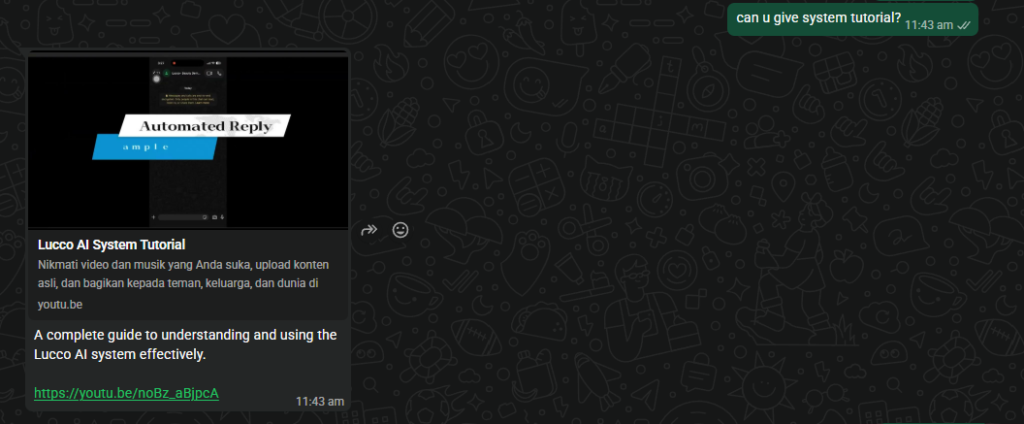
- After configuring the settings, you can test the results.
Important Note
- External Link is suitable for sending YouTube videos, website links, portfolios, online brochures, or other direct links.
- Please make sure the link is correct and can be opened by customers.
- If you want to send a video, it is recommended to use External Link instead of uploading the video file directly.