How can we help?
How to Add Keyword Trigger with Upload
This step shows how to auto-send uploaded media when a customer message matches specific keywords.
Steps
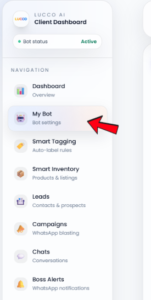
- Open the My Bot page.
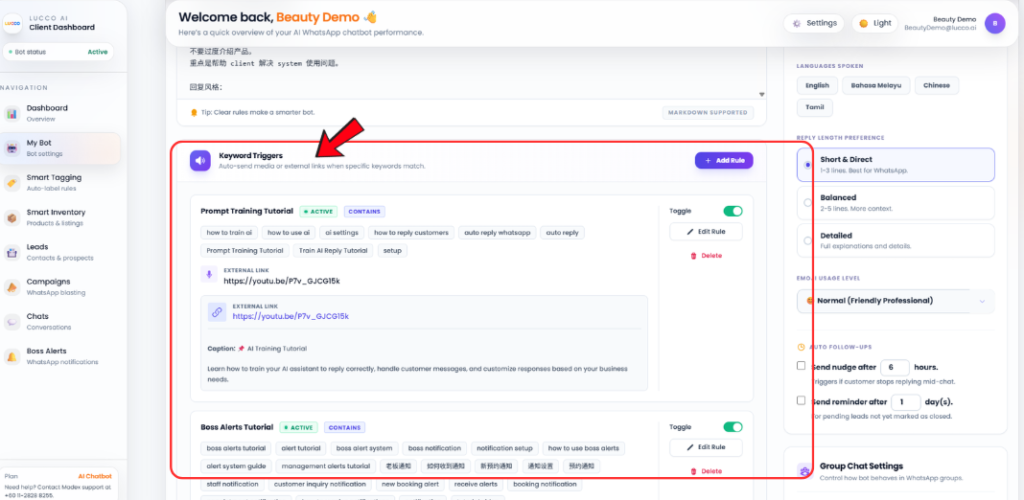
- Go to the Keyword Triggers section.
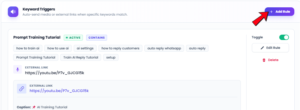
- Click Add Rule.
- Enter the Rule Name.
- Example: Pricing Inquiry, Product Brochure, or Location Info.
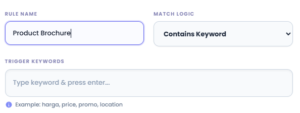
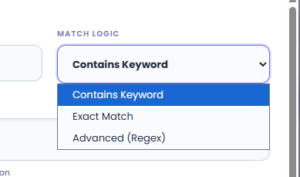
- Choose the Match Logic.
-
- Contains Keyword
The trigger will activate when the customer message contains the keyword. - Exact Match
The trigger will activate only when the customer message exactly matches the keyword. - Advanced (Regex)
Use this only if you need advanced keyword matching.
- Contains Keyword
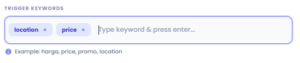
- Enter the Trigger Keywords.
-
- Example: harga, price, promo, location.
- Under Payload Type, select Upload.

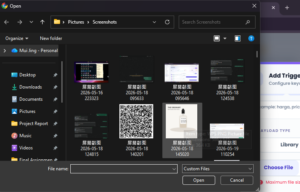
- Click Choose File.
- Select the media file you want to upload.
- Add a caption if needed.
- Make sure Rule Active is enabled.
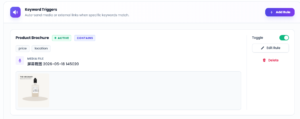
- Click Save Trigger.
- It will appear in the list after success.
Important Note
- Upload is suitable when you want the system to send a file directly from your computer.
- Maximum file size is 10MB.
- Please make sure the keywords are clear and related to the media you want to send.
- If the keyword is too general, the system may trigger the media too often.