How can we help?
How to Setup Group Reply
Group Reply controls how the AI Bot behaves in WhatsApp groups.
You can choose whether the bot replies only in personal chats, only in group chats, or in both personal and group chats.
Steps
Open the My Bot page.
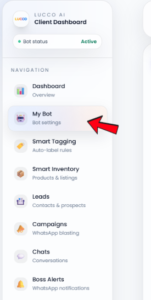
Look for Group Chat Settings.
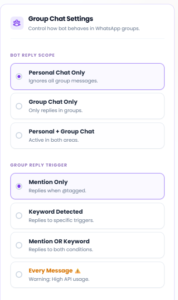
Under Bot Reply Scope, choose where the bot is allowed to reply.
You can select:
- Personal Chat Only
The bot will only reply to personal customer chats.
It will ignore all WhatsApp group messages. - Group Chat Only
The bot will only reply inside WhatsApp groups.
It will not reply to personal chats. - Personal + Group Chat
The bot will reply in both personal chats and WhatsApp groups.
Next, go to Group Reply Trigger.
Choose how the bot should be triggered inside a group.
You can select:
- Mention Only
The bot replies only when it is mentioned or tagged in the group. - Keyword Detected
The bot replies only when a specific keyword is detected in the group message. - Mention OR Keyword
The bot replies when it is either mentioned or when a keyword is detected. - Every Message
The bot replies to every group message.
After that, choose the Group Reply Style.
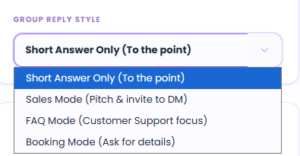
You can select:
- Short Answer Only
The bot gives short and direct replies. - Sales Mode
The bot replies in a sales-focused way and may invite the customer to DM. - FAQ Mode
The bot focuses on answering common customer support questions. - Booking Mode
The bot asks for details needed for booking or appointment handling.
After completing the setup, click Save.

The Group Reply setting will be updated.
Important Note
- For most businesses, we recommend using Mention Only or Mention OR Keyword.
- This helps prevent the bot from replying too often inside the group.
- Be careful when using Every Message, because it may cause high API usage and the bot may reply too frequently.
- If the group is used for customer support or community discussion, FAQ Mode is usually suitable.
- If the group is used for sales enquiries, Sales Mode can be used.
- If the group is used for appointment or booking enquiries, Booking Mode is more suitable.